Category: Q A
-
What is the Accessibility Mode in EAM
What is the Accessibility Mode in EAM For blind users and for users with visual impairment the EAM user interface can be configured in a mode that is adapted for the use with screen readers. In this mode, there are no graphical elements and no menu bar, the menu functions like save, duplicate, delete etc.
-
How to create a Pentaho Analyzer report on EAM data
How to create a Pentaho Analyzer report on EAM data If you have an account on EAM at CERN, you can watch the following video on how to create a Pentaho Analyzer report on EAM data https://videos.cern.ch/video/OPEN-VIDEO-2022-221-001
-
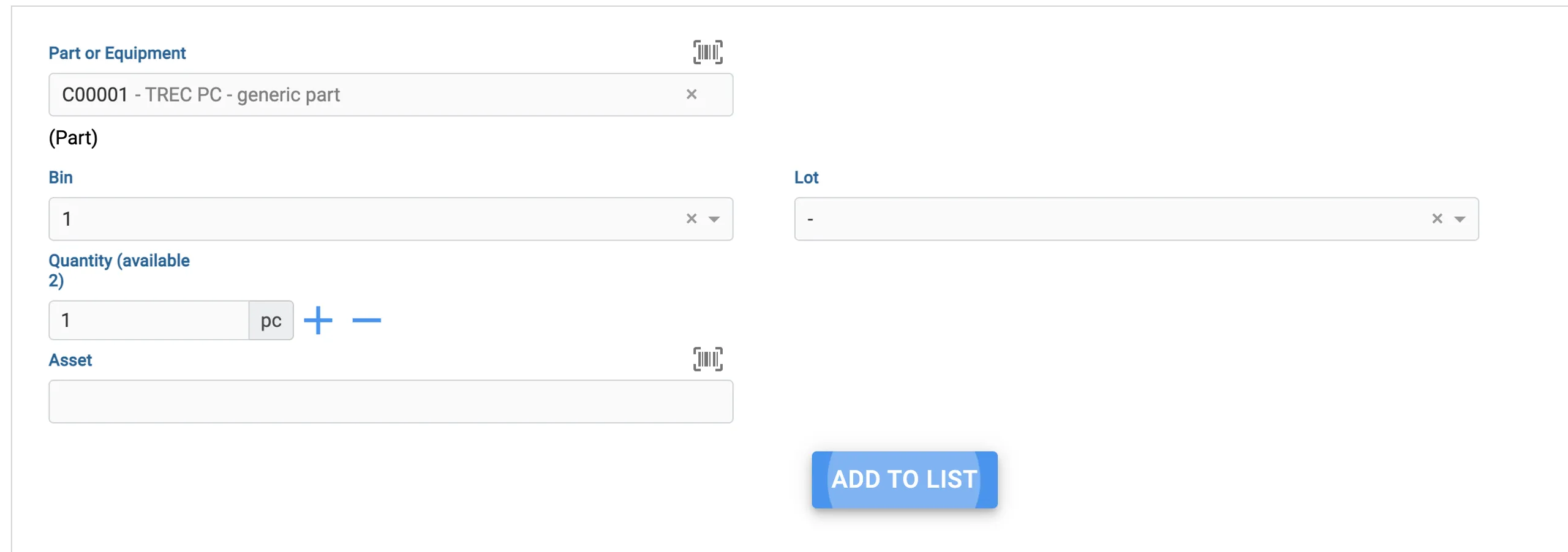
How should I use Lots (including in EAM Kiosk)
How should I use Lots (including in EAM Kiosk) Lots are used to keep track of specific batches of equipment or parts that you order. Let's say you ordered 10 pallets of hinges, from different manufacturers. You can create a Lot in EAM that denotes such lot code from the manufacturer and then add it
-
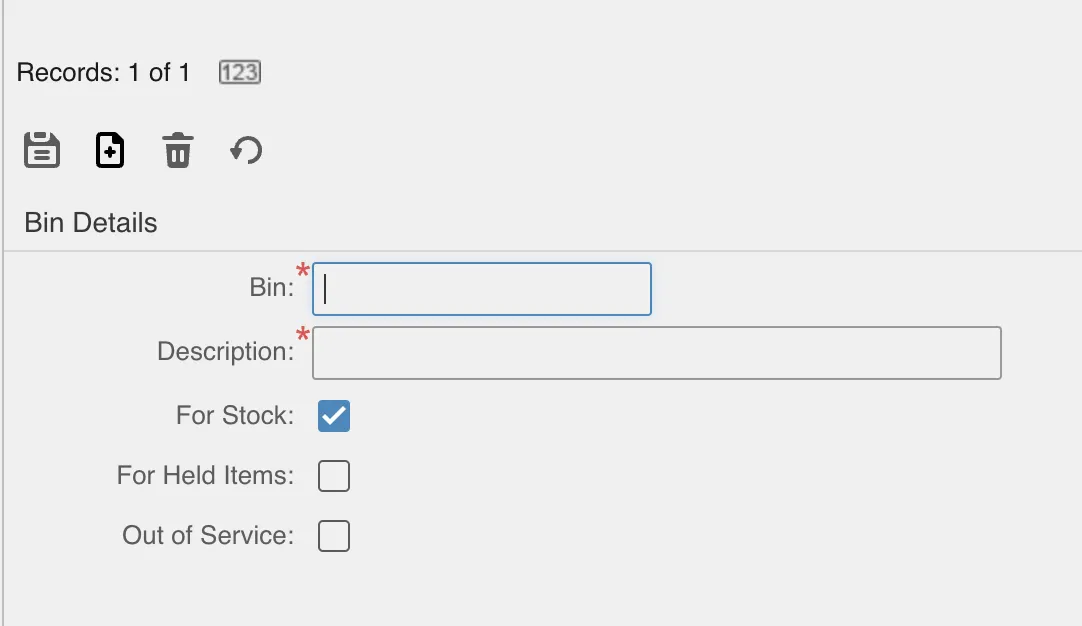
How to create Bins on your own Store
How to create Bins on your own Store Bins are an integral part of the Store. They denote the specific location inside a building where your parts or equipment should be. We recommend not only having a good simple naming convention for the Bins, but also printing barcodes so you can scan them quickly with
-

How to scan for your Equipment instead of typing their Code
How to scan for your Equipment instead of typing their Code There are two very good options to avoid having to type the codes for parts, equipment or bins: Use your phone The icon above lets you use the camera of your device to scan a barcode or QR code. Note that the QR Codes
-

How to issue and return Parts/Assets
How to issue and return Parts/Assets There are two main types of transactions you can do in your store: The moto should be: Issue out, Return in. Make sure to do these with a Barcode scanner or using your phone with QR code stickers attached to the bins and/or equipment. You can do transactions to
-
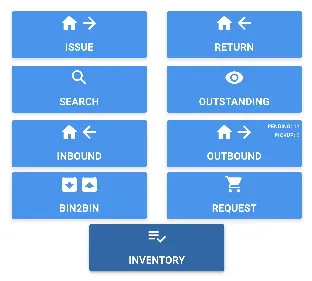
How to fix your Inventory without single Bin to Bin transactions
How to fix your Inventory without single Bin to Bin transactions You might encounter a situation where the inventory of your store is not properly updated anymore. This makes it very cumbersome to re-do the inventory, with you perhaps relying on a lot of issues and returns, as well as bin to bin transactions, and
-
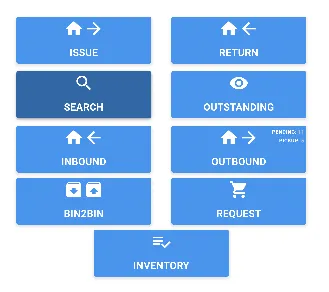
How to search for the Equipment/Parts you have in Stock
How to search for the Equipment/Parts you have in Stock You can head to EAM Store Kiosk and click on the Search button to get all of your Equipment and Parts in Stock. You will get a list of all Assets and Parts and you can even select one or many to do an Issue
-
How to set up access to the remote Pentaho Report Designer
How to set up access to the remote Pentaho Report Designer Please find the set-up supported by IT here https://cern.service-now.com/service-portal?id=kb_article&n=KB0006224
-
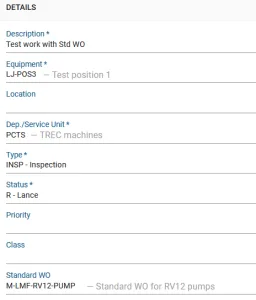
What are EAM Standard Work Orders and how can they be used
What are EAM Standard Work Orders and how can they be used Standard work-orders are templates that can contain several activities. Standard WOs can be of type parent which means that they may have children (other work-orders). Standard work-orders can be used in EAM Light as seen on the picture below: More details can be