Category: Q A
-
How can checklists be used in EAM
How can checklists be used in EAM A checklist is a structured way to ensure that all steps in a procedure are followed. A checklist is linked to a task-plan that can be included on an activity An example of a checklist can be found here: https://edms.cern.ch/ui/file/1887835/0.11/EAM_light_checklist_example_20170829.pdf More details can be found here: https://edms.cern.ch/ui/file/1370215/11.7/Infor_EAM_Checklists.pdf
-
How to Delete or Put Out of Service Equipment in EAM
How to Delete or Put Out of Service Equipment in EAM Equipment that has had no structural changes or work-orders assigned to them can be deleted but otherwise they must be declared out of service or put to status 'D' More details here: https://edms.cern.ch/document/1700107/0.2
-
How do Notifications work in EAM
How do Notifications work in EAM EAM supporters can setup email notifications based on the creation of EAM equipment or work-orders to a predefined list of email addresses (eGroups included). For more complex notifications, Alerts that are typically sent once a day can be setup.
-
How to setup Preventive Maintenance Work Orders with Equipment
How to setup Preventive Maintenance Work Orders with Equipment Using a PM schedule allows EAM to create automatic work-orders for selection EAM equipment. Typical examples include work-orders for lifts and other transport equipment that require maintenance to be done at set intervals. PM schedules can also be configured to the executed following the use of
-
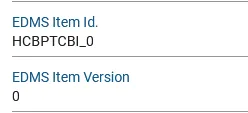
How to link an EDMS Item to an EAM Part and related Assets
How to link an EDMS Item to an EAM Part and related Assets The link from EDMS item to an EAM part is through two user-defined fields "EDMS Item Id" and "EDMS Item Version". As an example the part called "HCBPTCBI_0" (tracked by asset) is configured to link to the item: https://edms.cern.ch/item/HCBPTCBI_0/0 It’s done
-
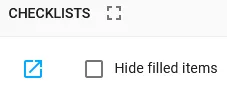
How to Print the Contents of a Work Order Checklist in EAM Light
How to Print the Contents of a Work Order Checklist in EAM Light Once a checklist has been created, it's possible to create a PDF version of it so that it can be stored and printed. First, select the Work Order and navigate to the Checklist. Then, click on the blue button below the "CHECKLISTS"
-
How to register an Import Request
How to register an Import Request The EDMS Micado import mechanism allows massive creation or attachment of documents to objects in Infor EAM using pre-defined Excel Templates. Once the Excel Templates have been completed correctly, an Import Request can be registered directly from the EDMS Portal by clicking on "Equipment – Register Import Request". After
-
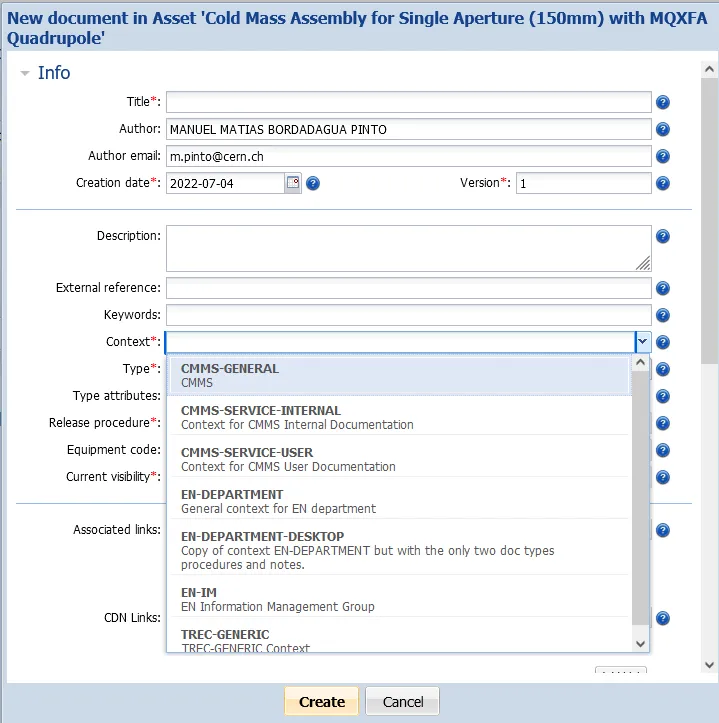
How to create EDMS documents with restricted access
How to create EDMS documents with restricted access By default, all documents created in the EDMS Documents tab are accessible by all identified EDMS users. If you would need to store confidential documents, this can easily be done by using an alternative EDMS Context. An EDMS Context has standard rules already preset that allow you
-
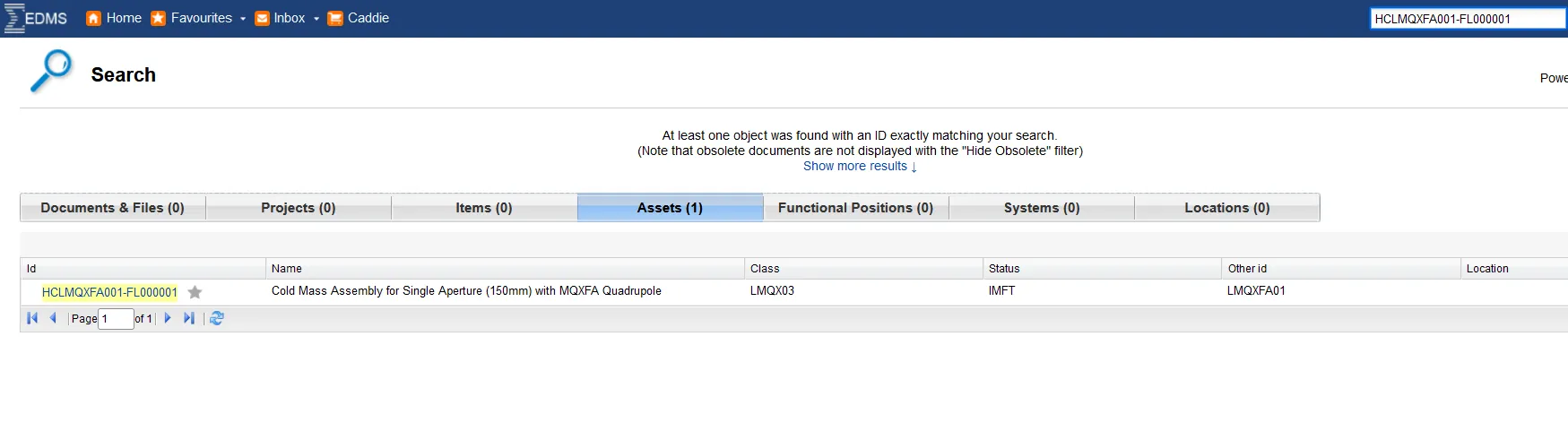
How to find your Documents in the EDMS portal
How to find your Documents in the EDMS portal All documents created in the EDMS Documents tab are physically stored in EDMS and are then linked to your equipment or your Work Order. In order to find it in EDMS, you can use the standard search on the EDMS Portal (https://edms.cern.ch) page by for example
-
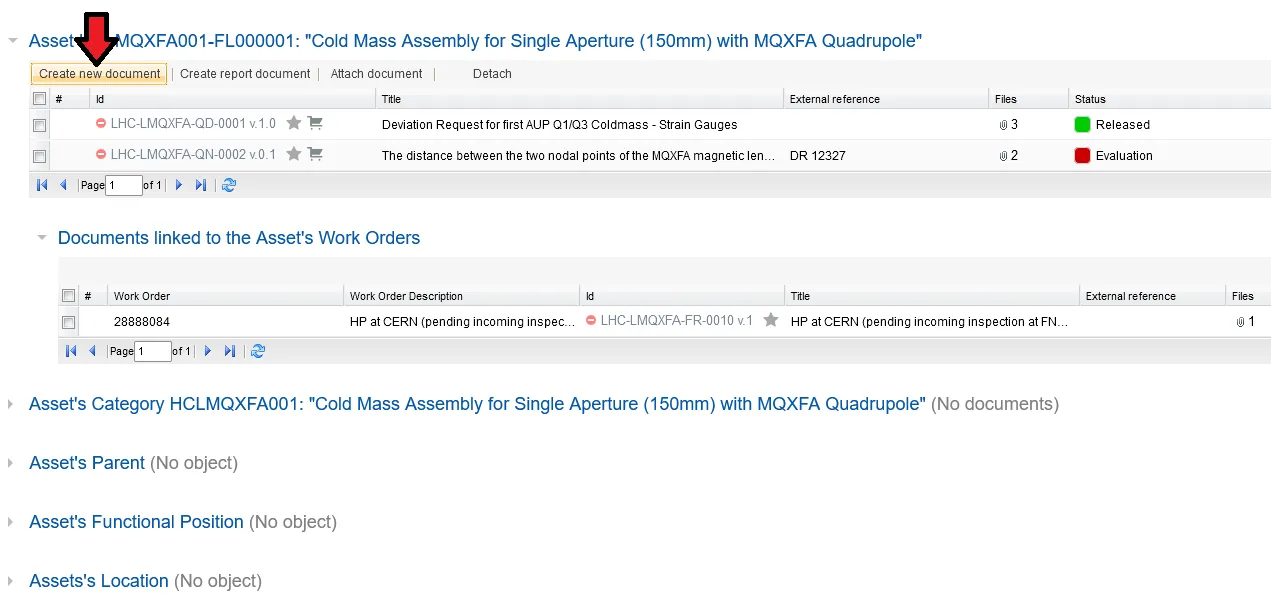
How to attach or create EDMS Documents in Infor EAM
How to attach or create EDMS Documents in Infor EAM If you would like to create a new document or attach an existing one, please access the EDMS Documents tab and click on the corresponding button; “Create new document” or “Attach document”. You will have a window popping up where you can fill in the