Category: Q A
-
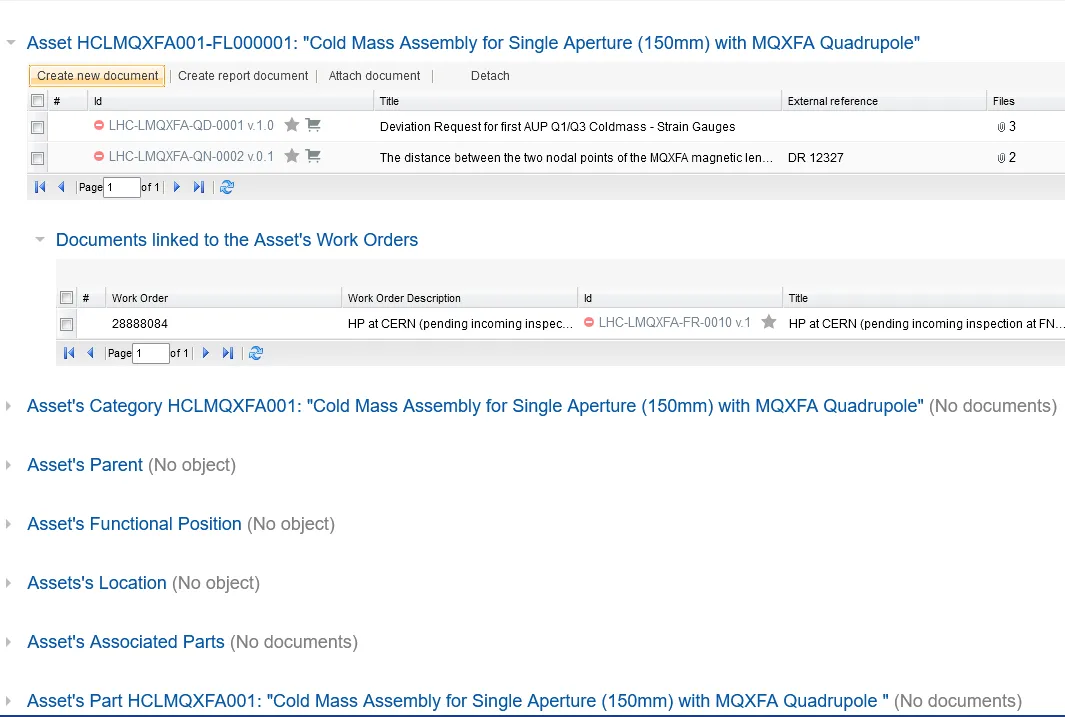
How to access related EDMS Documentation
How to access related EDMS Documentation At the top of the EDMS Document tab you will find all documents attached directly to the EAM object that you are working on. If scrolling further down on the EDMS Document tab it is however also possible to access documentation related to surrounding objects or entities in the
-
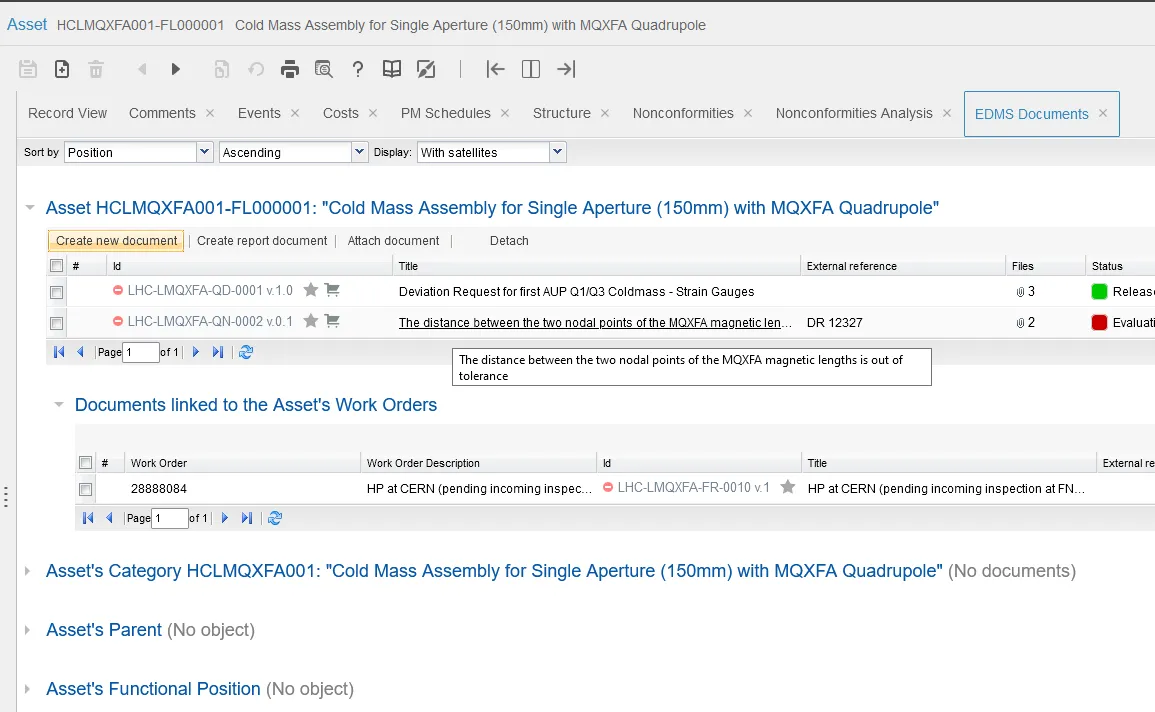
What is the EDMS Document’s Tab
What is the EDMS Document’s Tab The EDMS document tab is available directly from our normal screens in EAM. This tab allows you to consult existing documentation as well as creating, attaching or detaching EDMS documents directly from the corresponding object. EDMS documents can currently be attached to: This functionality allows easy access to user
-
How to access EAM Light
How to access EAM Light EAM Light at CERN can be accessed with the following URLs: Production: https://eamlight.cern.ch Test: https://testeamlight.cern.ch If you don’t have an EAM account, the system will automatically create one with basic access rights. In case you would need to change your access rights please contact your local administrator (link page here)
-
How to use EAM Direct Links
How to use EAM Direct Links You can go directly to certain pages in Infor EAM that link to a specific Asset, Position, System, Location, Work Order or Part, by going to a specific URL that they can format according to you want to access. How to create an EAM direct link? To create a
-
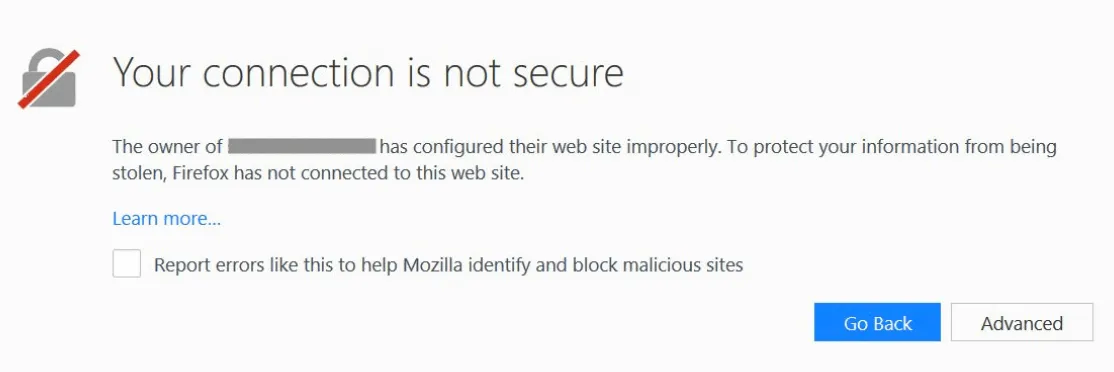
How to fix certificate issues in EAM
How to fix certificate issues in EAM You might have an issue whenever you access the test versions of Infor EAM, EAM Store Kiosk, EAM Light, Equipment Generator or EAM Barcoding, in which you encounter a page mentioning that the connection is not secure. It may closely resemble the following: If this happens, it means
-
How to work with Inspections in EAM
How to work with Inspections in EAM To know more about inspections please consult the following links: Inspection Module Basics Inspection Module – Infor EAM 8.3 Extended Inspection Work Orders – Example Inspection Management with Infor EAM 8.3 & CERN EAM Mobile Application
-
How to compose direct links to records in EAM (extended)
How to compose direct links to records in EAM (extended) There exist two methods to compose direct links to records in EAM: 1. Links using php scripts One method to access EAM records is provided by the means of the links below that call a php script. This method does only work on the production
-
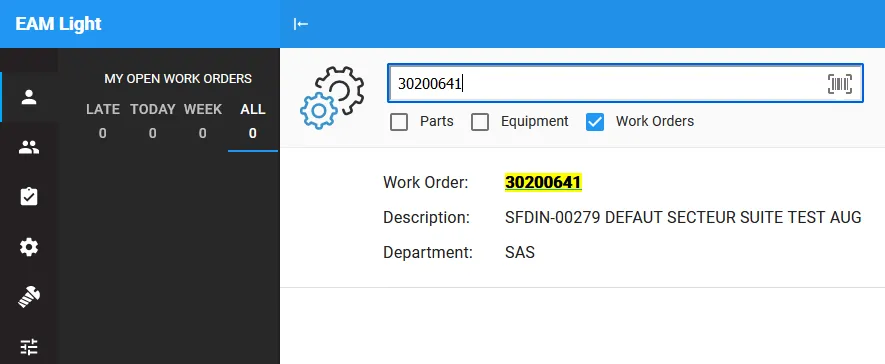
How to print a Work Order in EAM Light
How to print a Work Order in EAM Light You can generate paper versions of Work Orders that can be printed in a PDF format in EAM Light quite easily. First, go to EAM Light and search for the Work Order you require: Click on your Work Order and select the Print button on the
-
How to access the manual for EAM Extended
How to access the manual for EAM Extended There are many documentation files for EAM Extended that are updated from time to time whenever a major version release happens. You can find these documents in the links below. Official Manual: https://edms.cern.ch/document/1266400/11.7 Tips and Tricks: https://edms.cern.ch/ui/#!master/navigator/project?P:1089122115:1089122115:subDocs
-
How to access EAM (extended) and EAM Light
How to access EAM (extended) and EAM Light You can access EAM through the following links: EAM (Production) – https://eam.cern.ch EAM Light (PROD) – https://eamlight.cern.ch EAM (TEST) – https://testeam.cern.ch EAM Light (TEST) – https://testeamlight.cern.ch Note that if you do not have an account created, you might encounter an error at the first time you login