Tag: eam
-
What is the Screen Cache in EAM
What is the Screen Cache in EAM The Screen Cache is a menu bar at the bottom of your screen to which you can add the most frequently used screens. The content of these screens is cached so that you can navigate between records on different screens easily. Screens are added to this menu by
-
How to visualize related Work Orders
How to visualize related Work Orders There are several tabs on the work order screen in EAM that contain information about related work orders. If they are useful for you, please ask support to make them visible. For more information, please consult the document Tips & Tricks n28 – Related Work Orders.
-
How to update multiple records in EAM
How to update multiple records in EAM If you just need to update one value on multiple equipment records in EAM, there is no need to extract the data and to assemble an upload file. You can select multiple lines in the list view and right click them to obtain an update pop-up. Please note
-
What are Key Performance Indicators (KPIs)
What are Key Performance Indicators (KPIs) EAM allows to aggregate any kind of information from the database in the form of key performance indicators (KPIs). KPIs will usually represent numbers for things that you need to supervise, e.g. WOs completed last week, number of unsigned non-conformities, number of magnets missing a quality check … Please
-
What are the To Do Lists (Inboxes) in EAM
What are the To Do Lists (Inboxes) in EAM EAM allows to configure To Do that are called Inboxes. Inboxes point to lists like new work orders, work orders to approve, equipment to update, part requisitions to approve or any list based on your criteria. In EAM, inboxes are shown on the start screen with
-
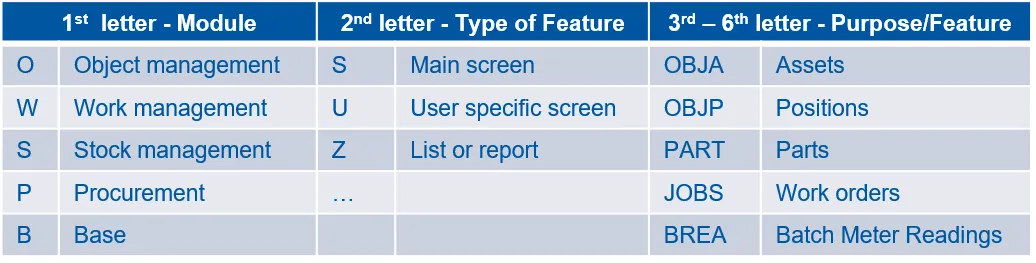
What are the Keyboard Shortcuts to access different Screens in EAM
What are the Keyboard Shortcuts to access different Screens in EAM The shortcut Ctrl + F2 opens a pop-up for navigating to any of the screens in your menu. To select a screen, you can either use the lookup on the pop-up or you can type the 6-letter screen code directly into the field. By
-
How to enter dates in EAM quickly
How to enter dates in EAM quickly There are a few useful shortcuts for entering dates in the EAM interface: For more information, please consult the document Tips & Tricks – Dates.
-
How to use pre-configured filters (dataspies) for Lists in EAM and EAM-Light
How to use pre-configured filters (dataspies) for Lists in EAM and EAM-Light EAM provides a powerful feature to register and use pre-configured filters for any of the list views. These pre-configured filters are called dataspies. Dataspies that are created in EAM are automatically available in the EAM-Light interface. By default dataspies are personal, but the
-
How to colour code Classes in EAM and EAM Light
How to colour code Classes in EAM and EAM Light EAM and EAM-Light will display colour icons for classes when configured. Please contact the support to add colored icons for any of your classes or consult the documents Tricks & Tips n6 – Colours for Classes and User Meeting – Colours for Classes for more
-
How to change the Equipment of a Work Order in EAM
How to change the Equipment of a Work Order in EAM When changing the Equipment of a Work Order in EAM, the Equipment selection pop-up proposes by default the structure tab that allows navigating through the structure to a child or parent of the original Work Order Equipment. Alternatively, the Search Tab can be selected